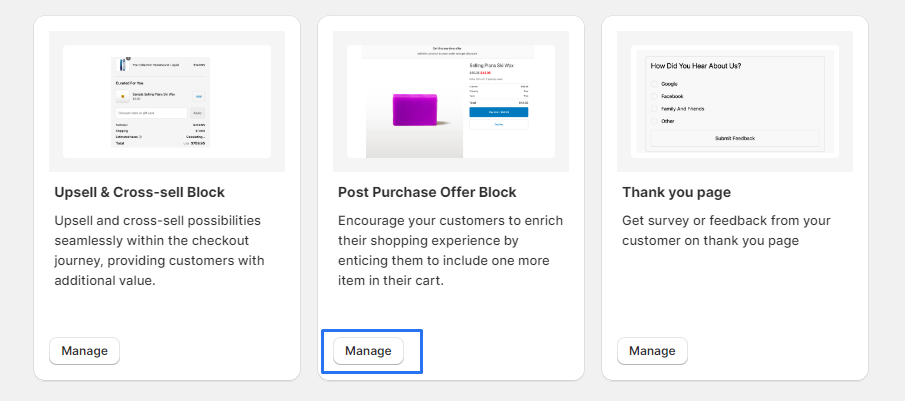
Post Purchase Offer Block
Encourage your customers to enrich their shopping experience by enticing them to include one more item in their cart.
1 . Go to shopify Admin Panel
Click on apps => Spring Checkout Customization
2 . Go to Post Purchase Offer Block
Click on "Manage" to add Post Purchase Offer Block widget
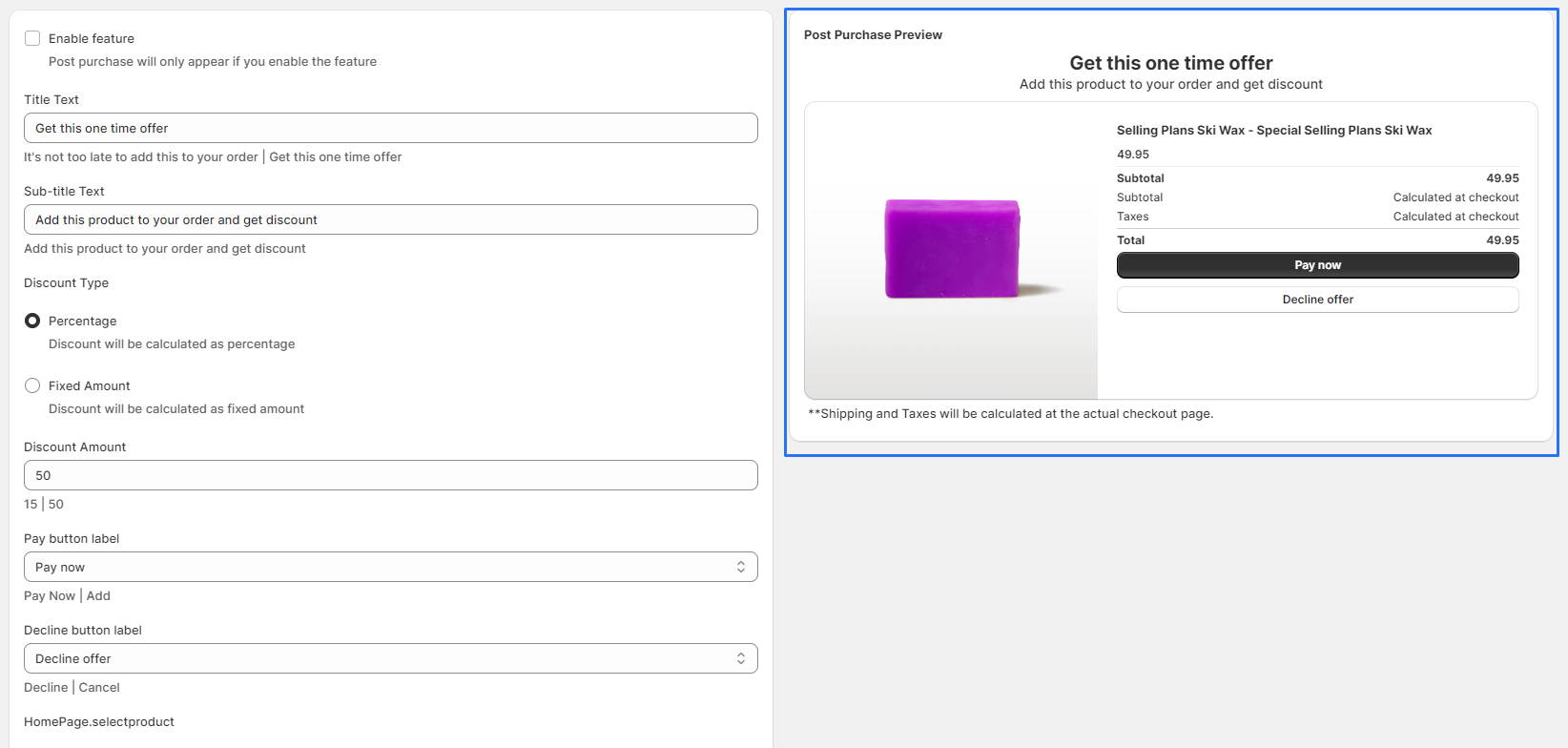
3 . Fill in the "Title Text" and "Sub-title Text" fields with compelling copy that encourages customers to add the promoted product.
4 . Choose the "Discount Type" you want to offer
5 . Enter the "Discount Amount" you want to offer
6 . Customize the Pay button label and Decline button label to match your brand voice.
7 . Click on "SelectProduct" or "ChangeProduct" to open the product configuration page
8 . Check out the preview on the "right-hand side" of the page
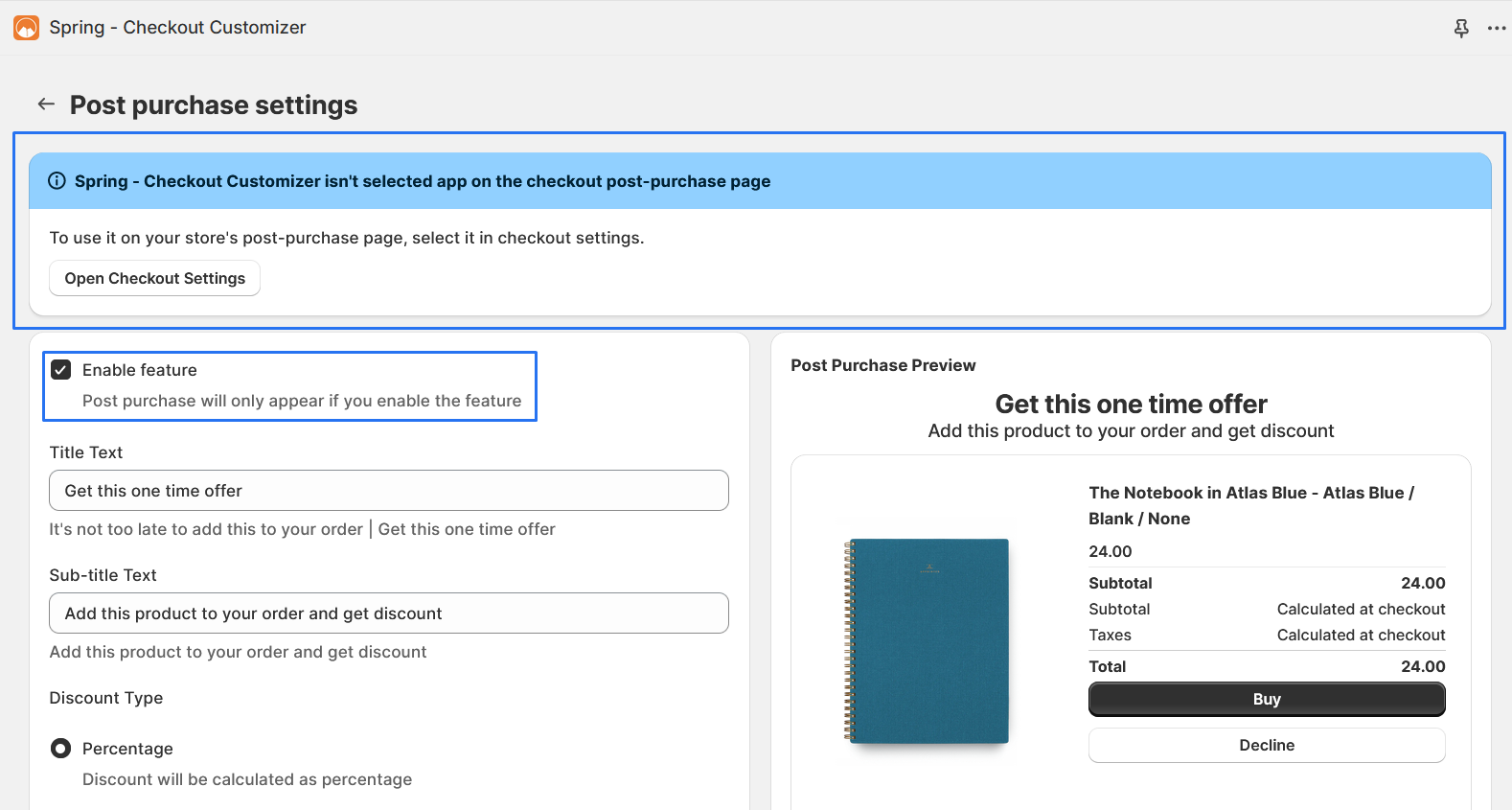
9 . Make sure the "Enable feature" box is "chacked" and "Save".
10 . After that, Click on the banner button to "open" the "checkout settings".
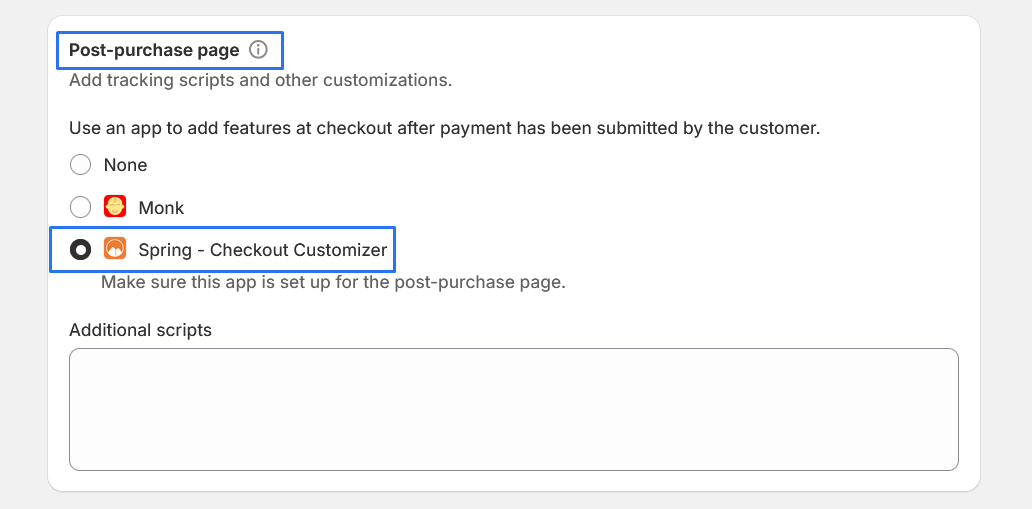
11 . Click to redirect the page, scroll to the "post-purchase page" section, and "select your app".