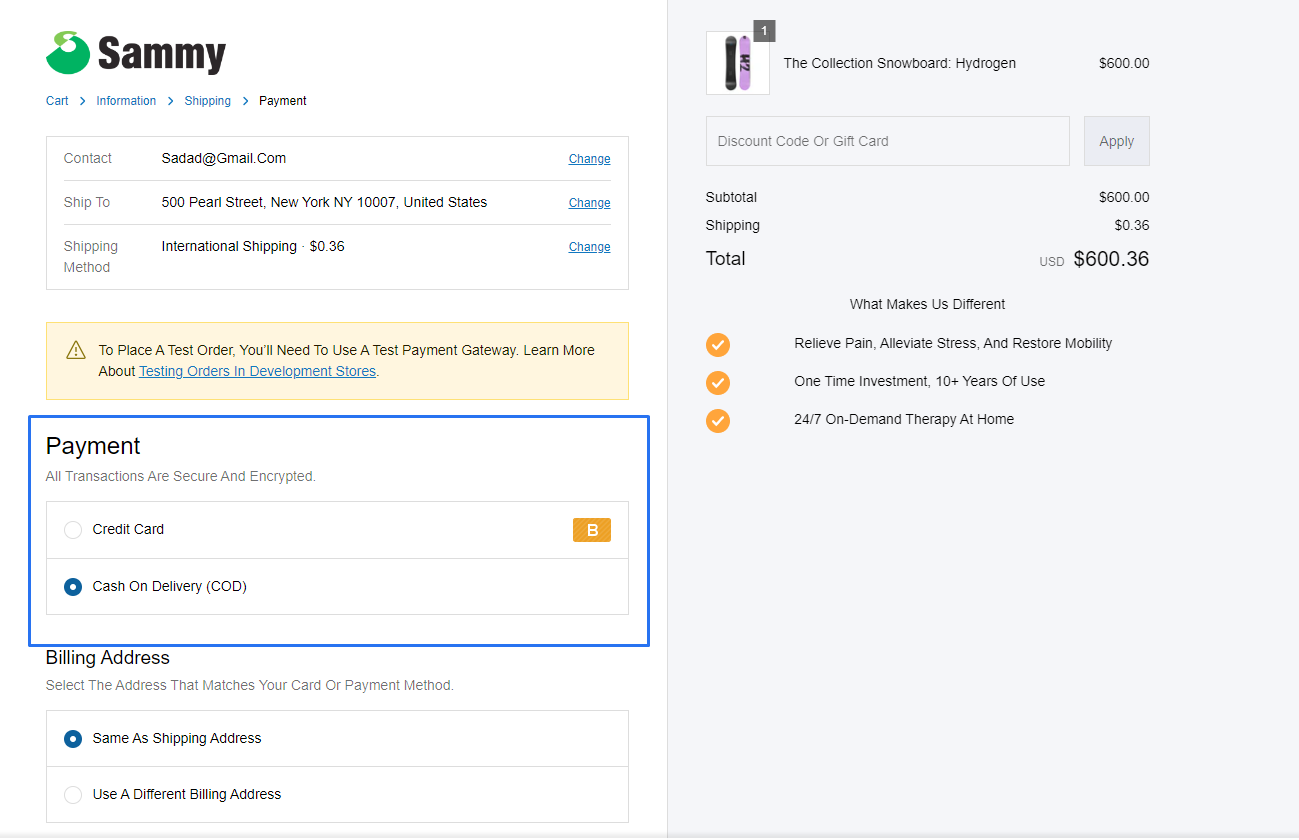
Payment Customizations
You can hide, reorder, and rename payment methods and delivery options of your checkout.
1 . Go to shopify Admin Panel
Click on apps => Spring Checkout Customization
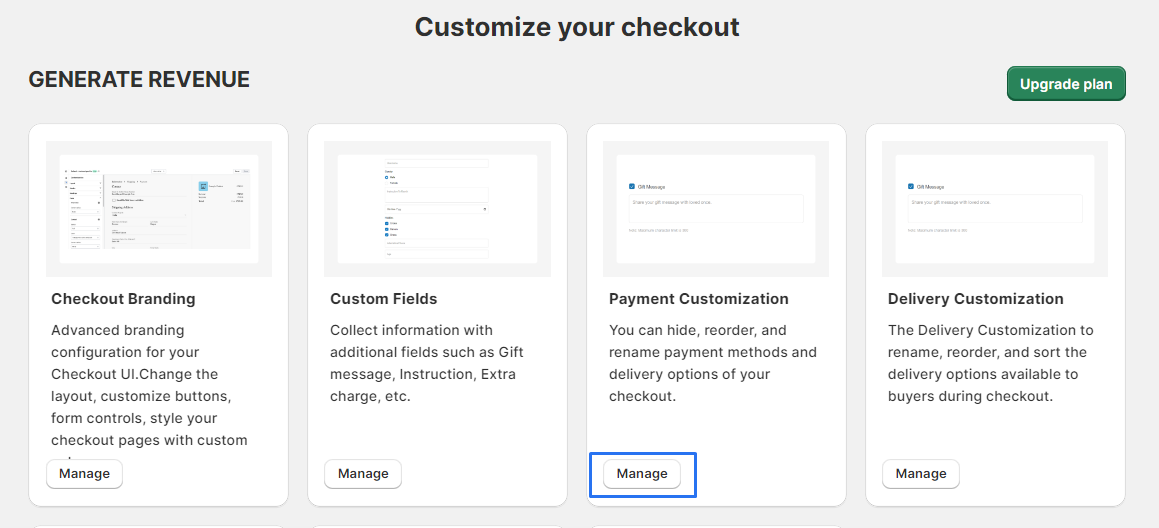
2 . Click on Payment Customization
Select "Manage" to access the Payment Method widget.
3 . Click on "+ Create Customization" and choose your customization type, such as Hide, Rename, Reorder .

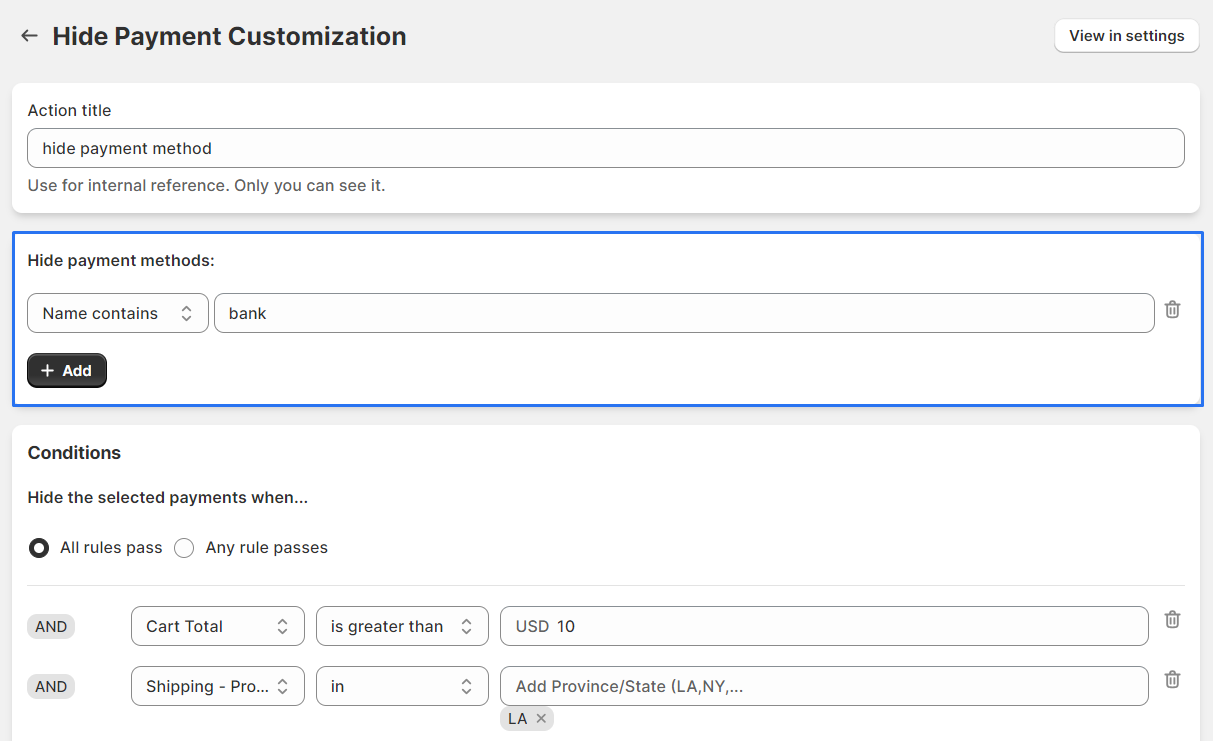
4 . you first need to specify the payment method you want to hide/rename/reorder.
5 . After selecting the payment methods to hide, you need to add a "condition" that defines when the customization should be applied.
6 . After configuring your changes and conditions, click "save" to apply them.
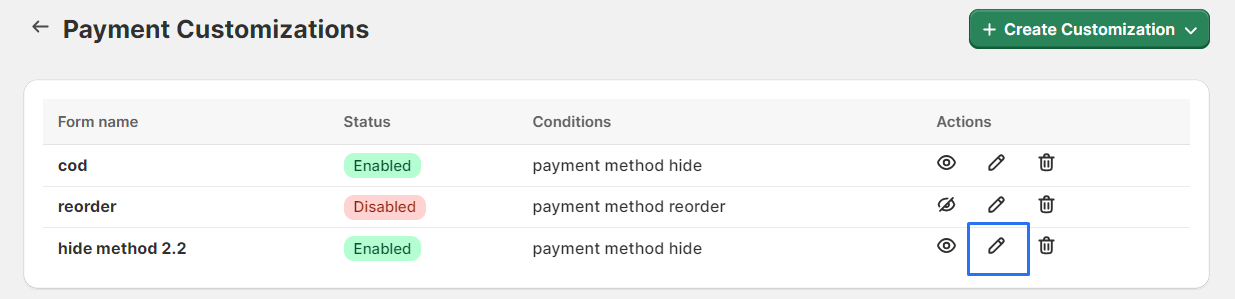
7 . Click the "Edit" button to modify any aspects of the form.
Locate your customization form in the list and check that it is set to "Active".
After clicking the "Edit" button, you will be redirected to the form builder interface.
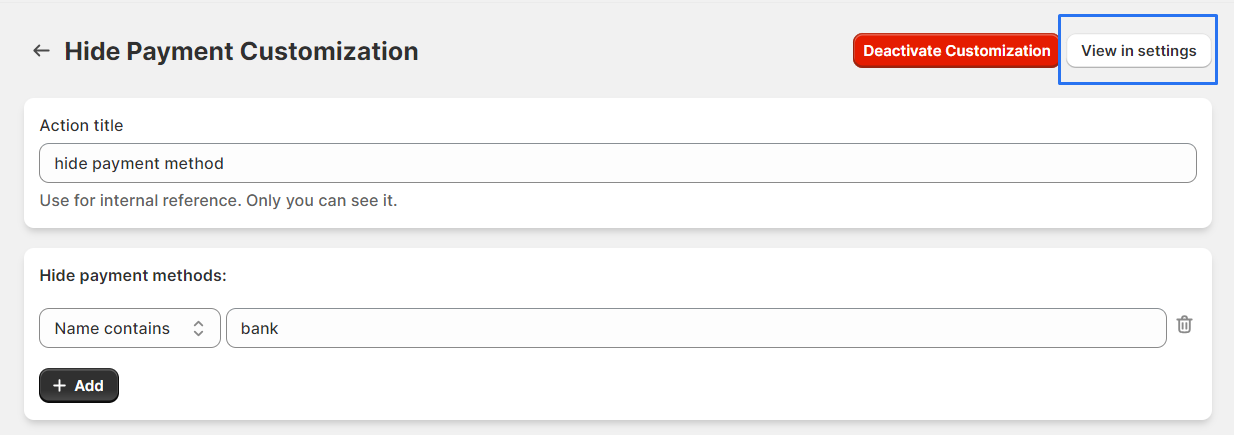
8 . Once in the form builder interface, click "View In Settings" for additional options.
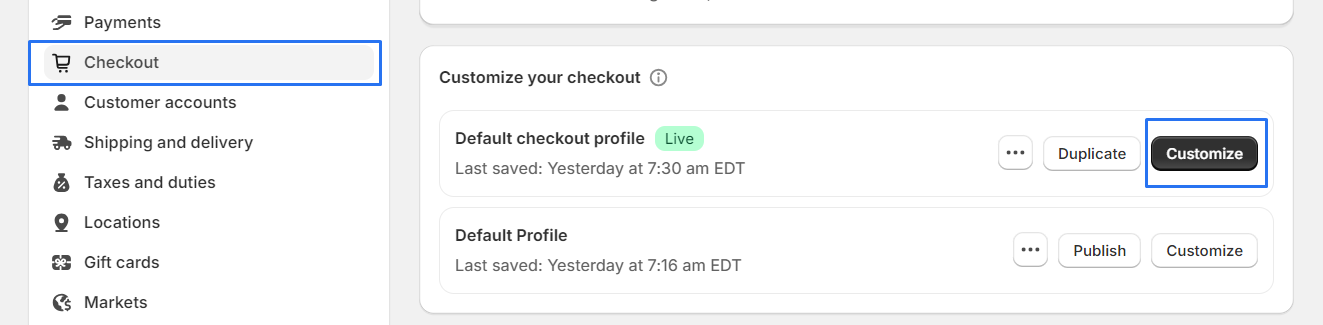
9 . Select "Checkout" and choose your profile, then click "Customize" to adjust settings specific to your selected profile.
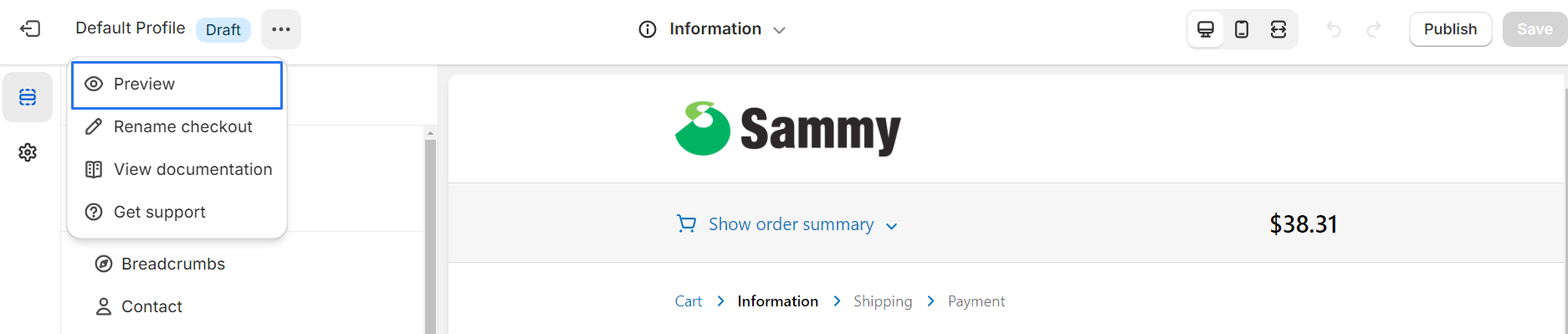
10 . Click on select "Preview" to see how the checkout process will appear with the customized payment methods.
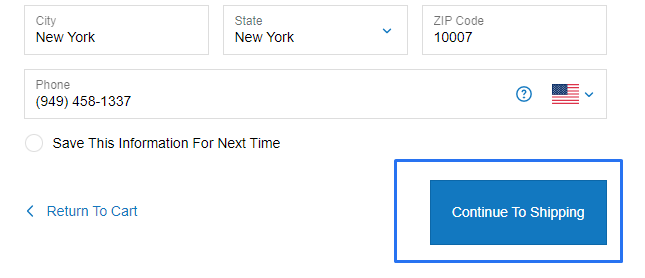
11 . Continue through the checkout process by clicking "Continue To Shipping"
12 . Continue through the checkout process by clicking "Continue To Payment"
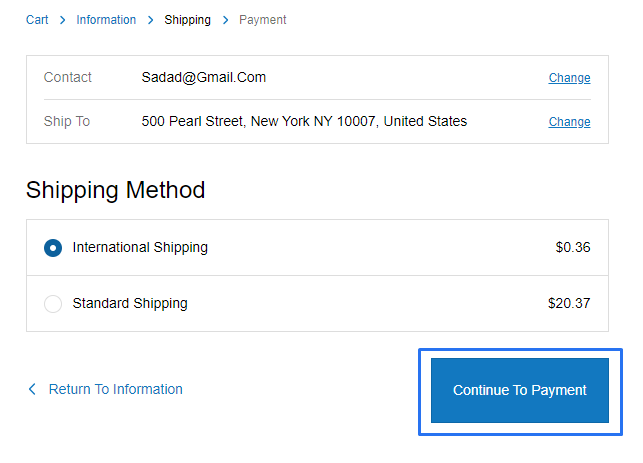
13 . Check your profile payment section of your profile, "verify" that your "customized payment methods". displayed correctly.