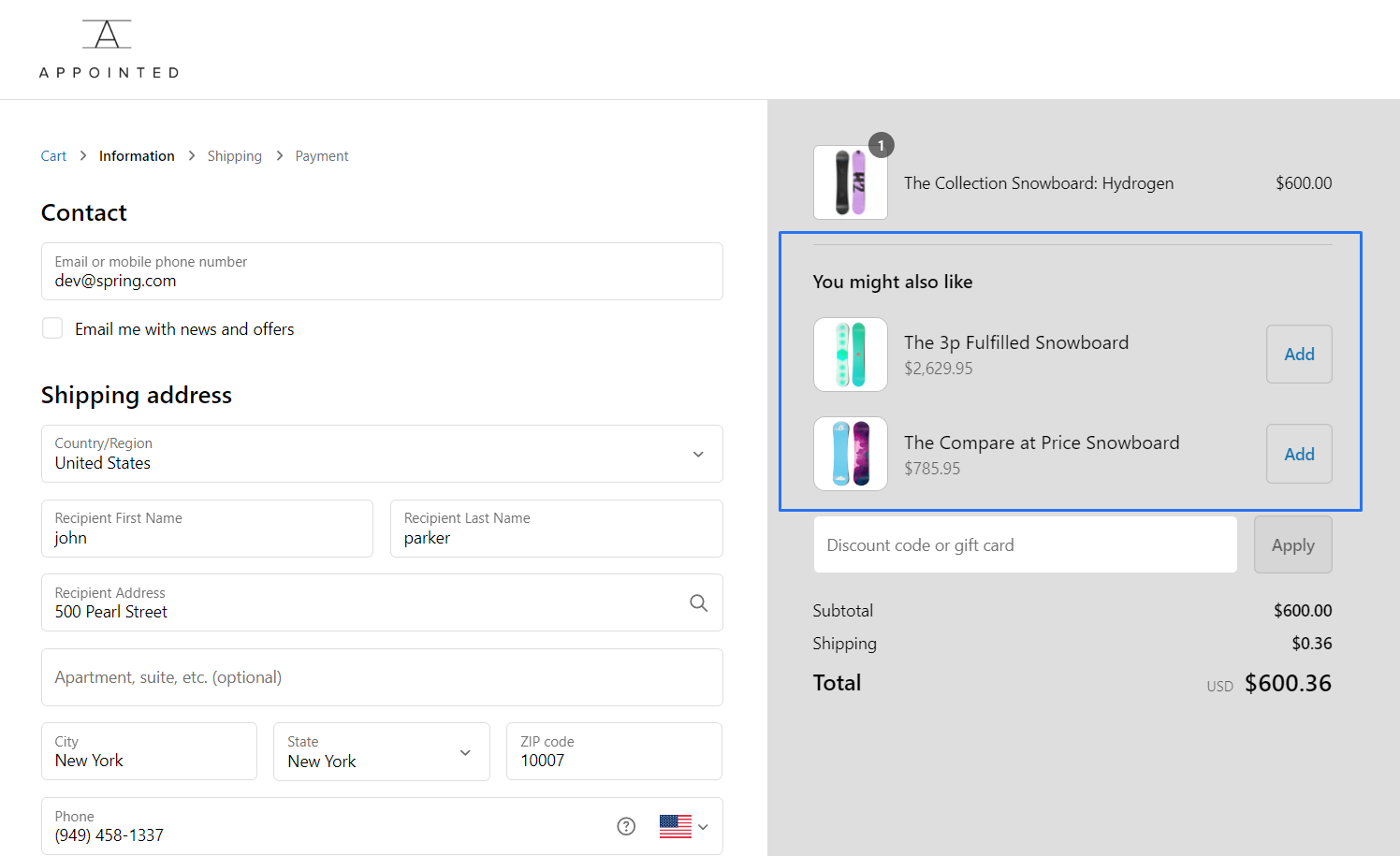
Upsell & Cross-sell Block
Upsell and cross-sell possibilities seamlessly within the checkout journey, providing customers with additional value.
1 . Go to shopify Admin Panel
Click on apps => Spring Checkout Customization
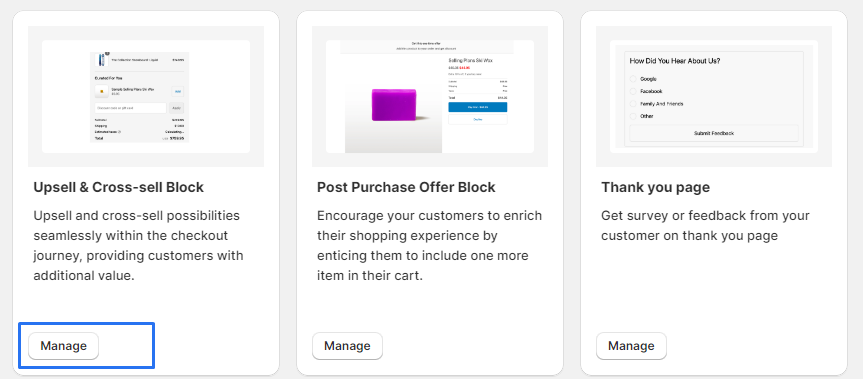
2 . Go to Upsell & Cross-sell Block
Click on "Manage" to access the settings for the Upsell & Cross-sell Block widget.
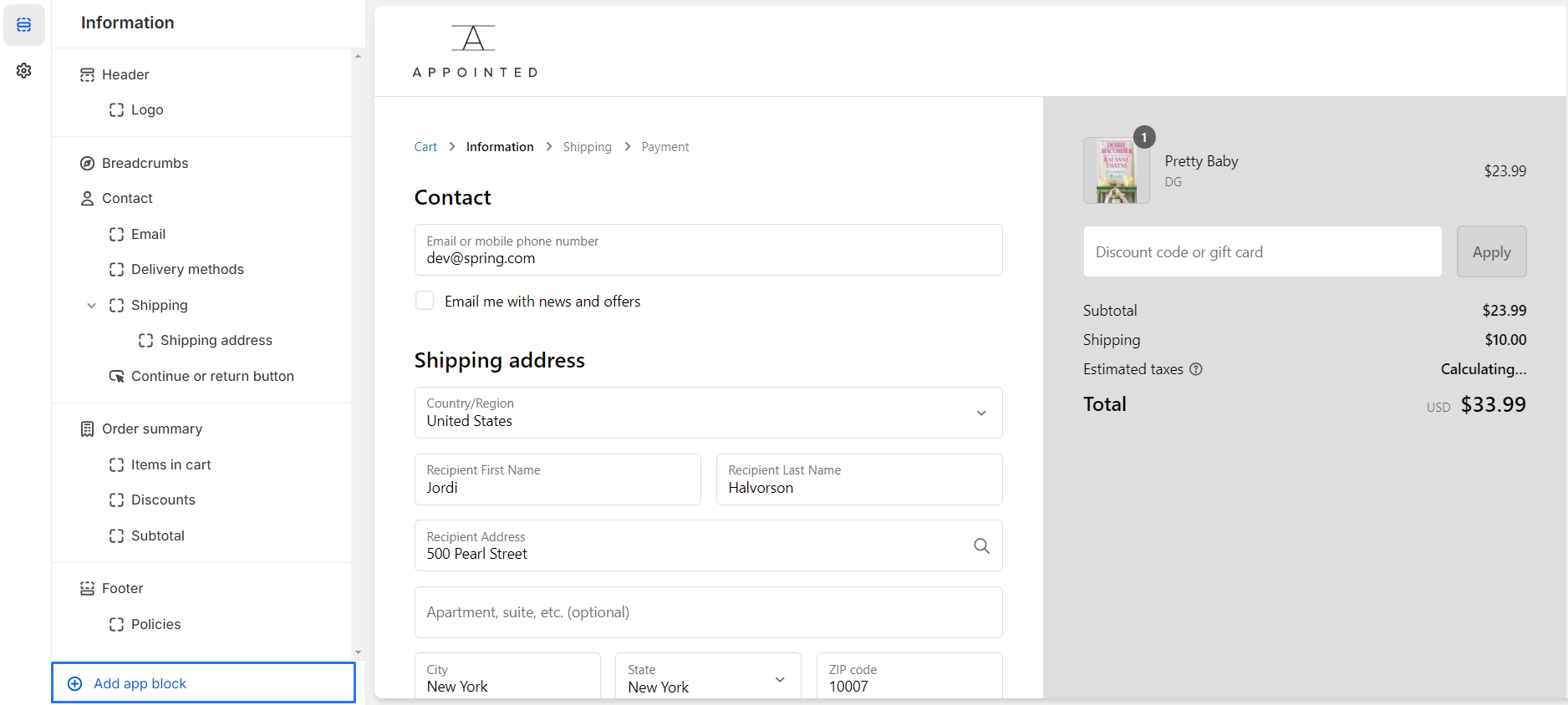
3 . Click the "Add App Block" button, which will show a list of available app blocks.
4 .Scroll through the options and select the "upcsell block" app block.
5 . "Enable or disable" the extension as needed for the upsell feature.
6 . Select the "number of products" to display in the upsell block (1, 2, or 3).
7 . "Choose a variant" for the products displayed in the upsell block.
8 . Set a "title" for the upsell block.
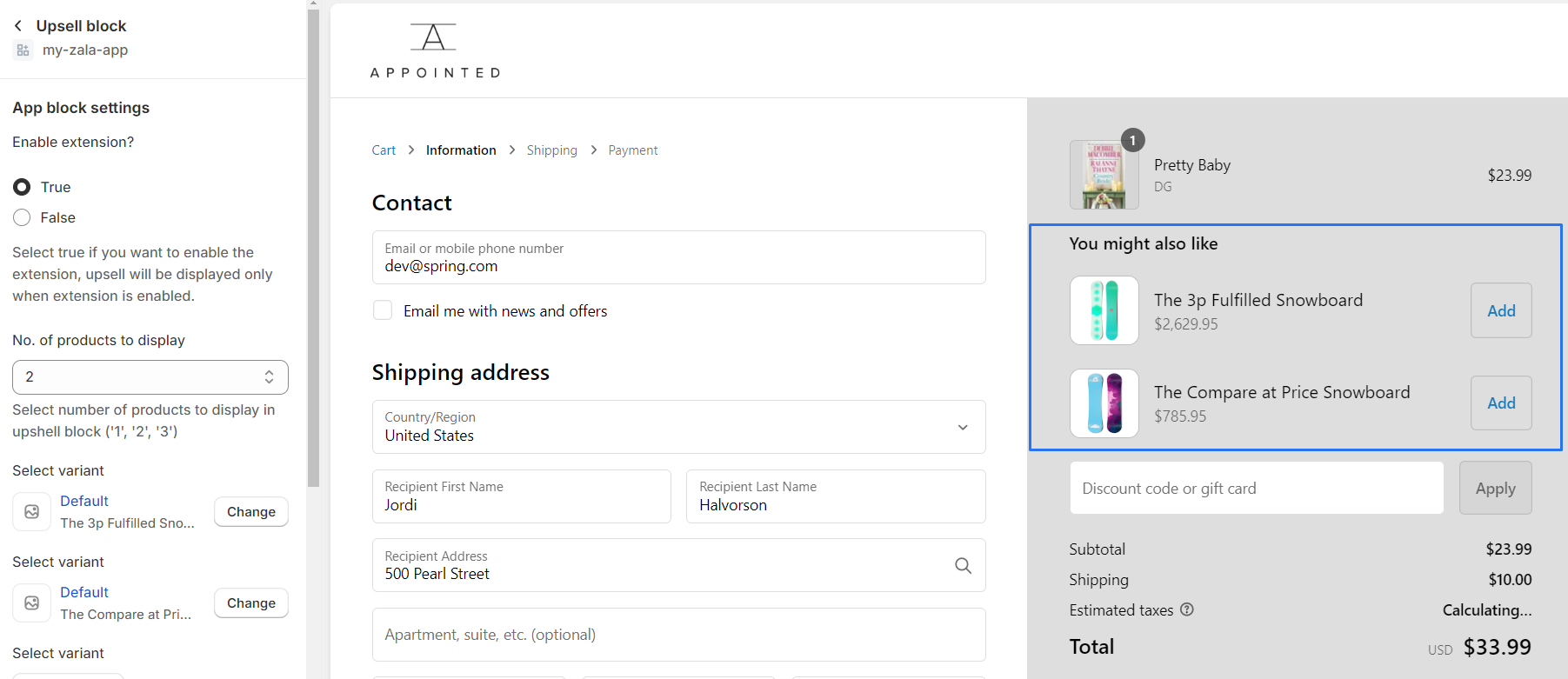
14 . Fill out all necessary details and select the product variants. and "preview" the block to ensure it appears as desired and make any necessary adjustments.