Gift Message Block
Allow customers to add a special message for loved ones.
1. Go to shopify Admin panel
Click on apps => Spring Checkout Customization
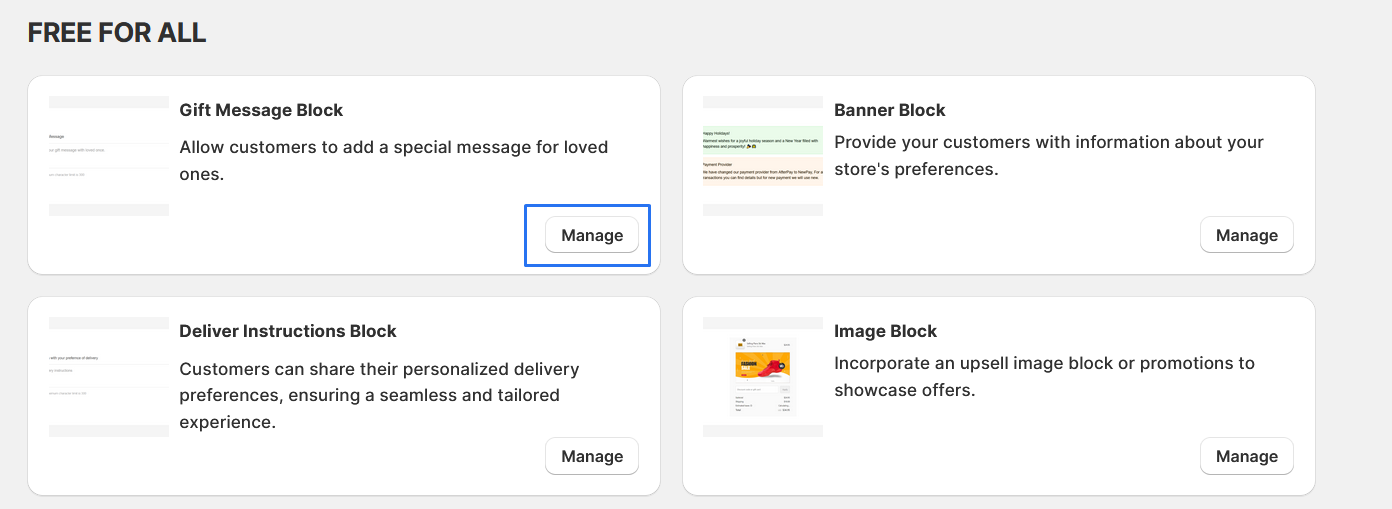
2. Click on "Manage" button to add the Gift Message Block widget.
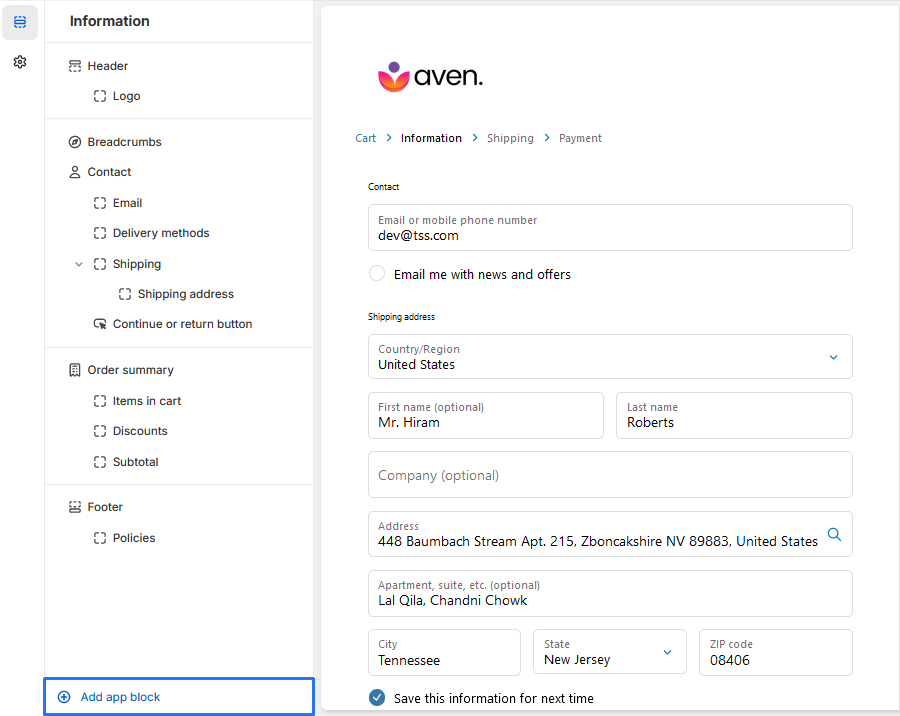
3 . Click the "Add App Block" button to proceed with adding the Gift Message Block.
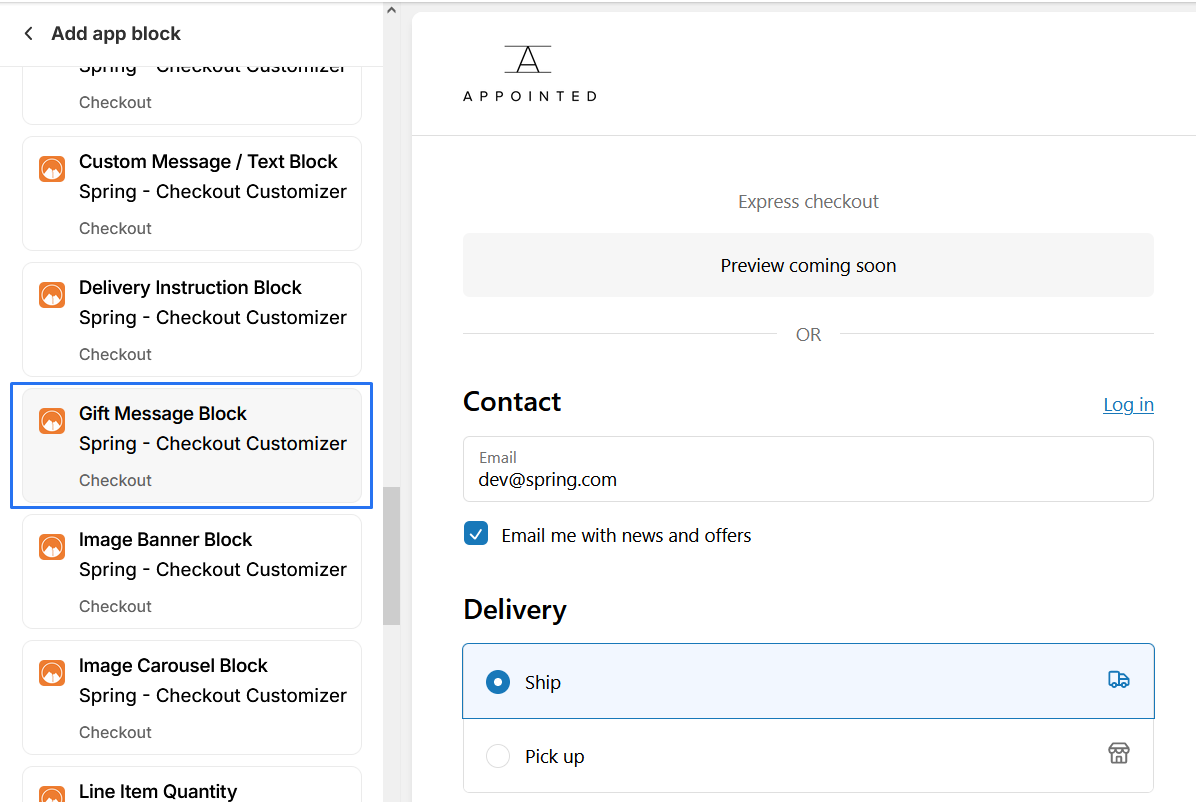
4 . To add Gift message block, simply click on the "Add Gift message block" button and follow the furter process
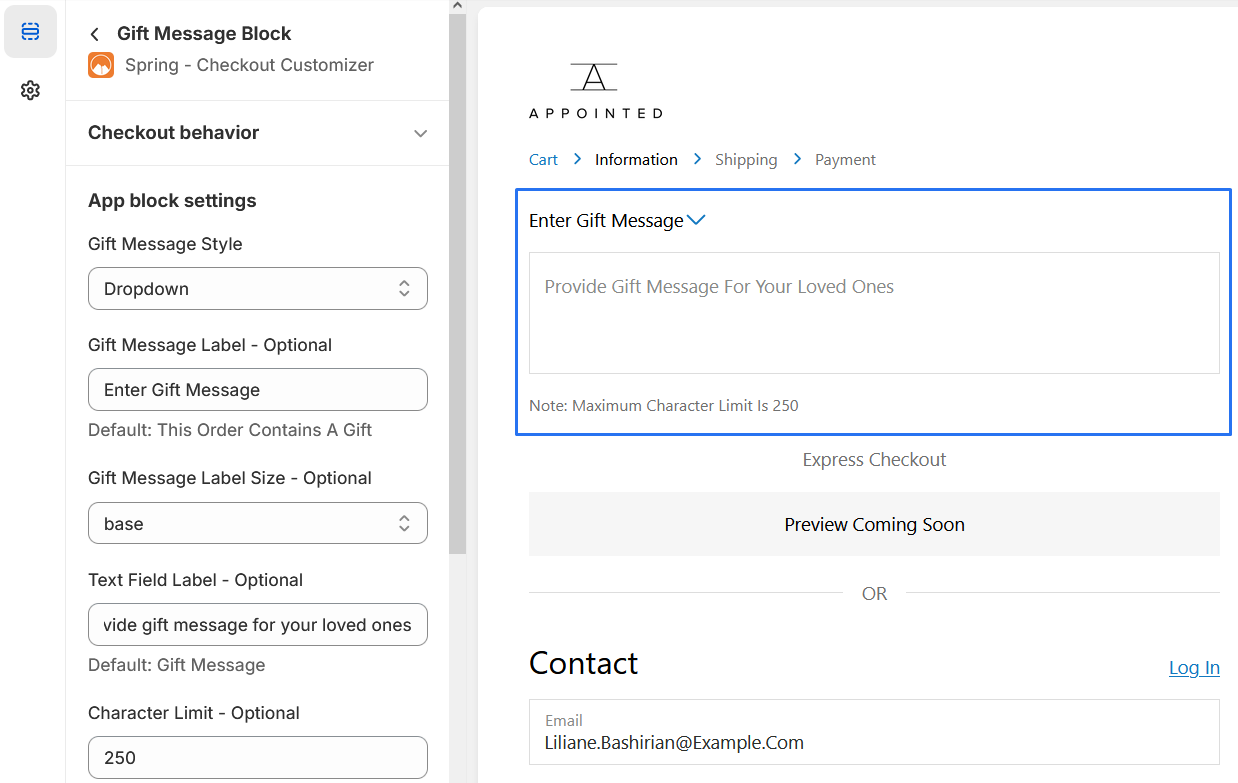
5 . Gift Message Block
We provide bellow settings
-
1. Gift Message Style: Here, you can choose between two options:
-
Checkbox: This allows customers to select a checkbox if their order contains a gift.
-
Dropdown: This option enables customers to choose a gift message from a predefined list.
-
-
2. Gift Message "Label": This is the title of the block. You can customize it to suit your needs. For example, you can set it to "Special Gift Just for You!"
-
3. Gift Message "Label Size": You can customize the size of the label here. For instance, you can set it to "extraLarge" for better visibility.
-
4. "Text Field Label": This is where customers can write their personalized gift message. You can set a default label like "Enjoy Your Free Gift".
-
5. "Character Limit": Here, you can set the maximum number of characters allowed in the gift message. The default limit is 250 characters.
you should be able to "preview" the extension to ensure it appears as desired.