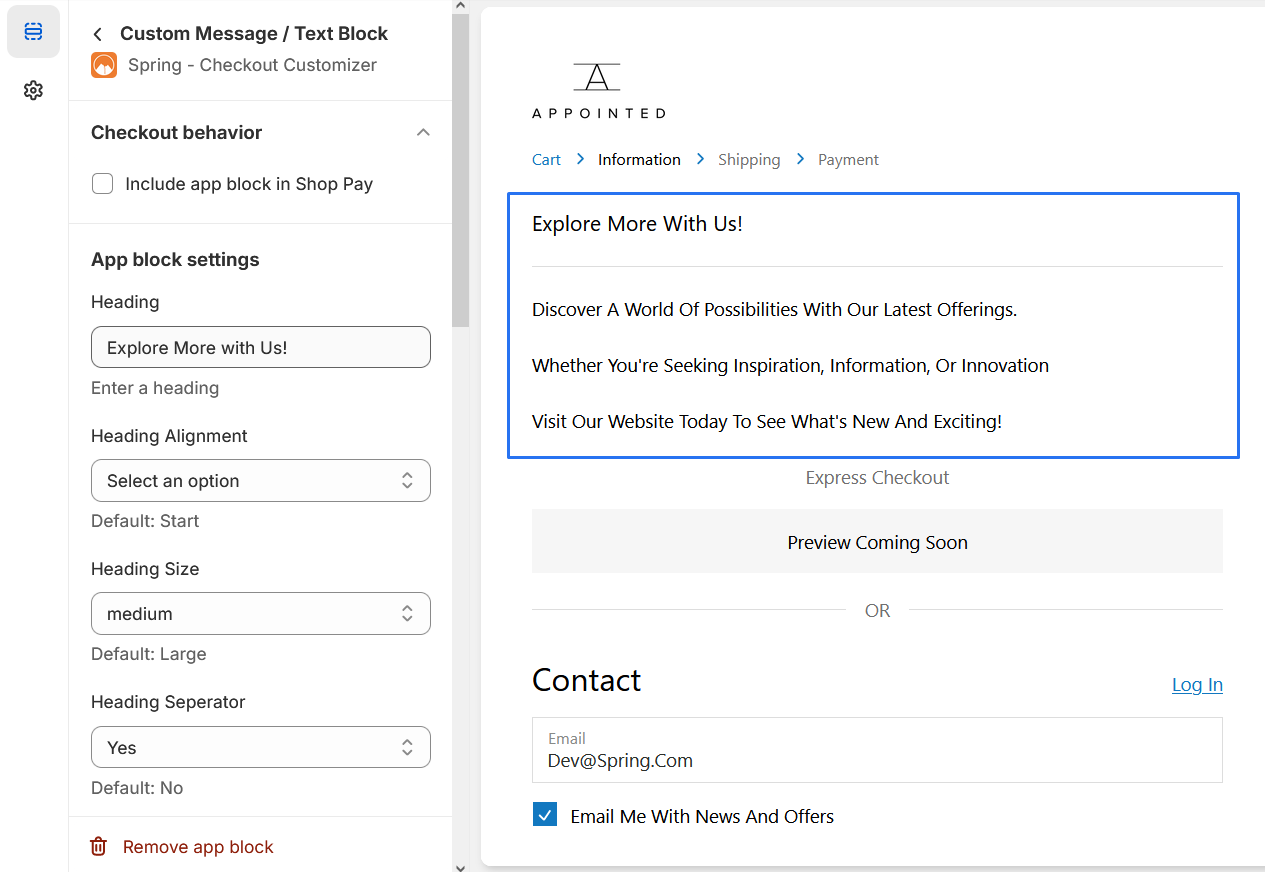
Custom Message / Text Block
Have complete control over a configurable message.
1. Go to shopify Admin panel
Click on apps => Spring Checkout Customization
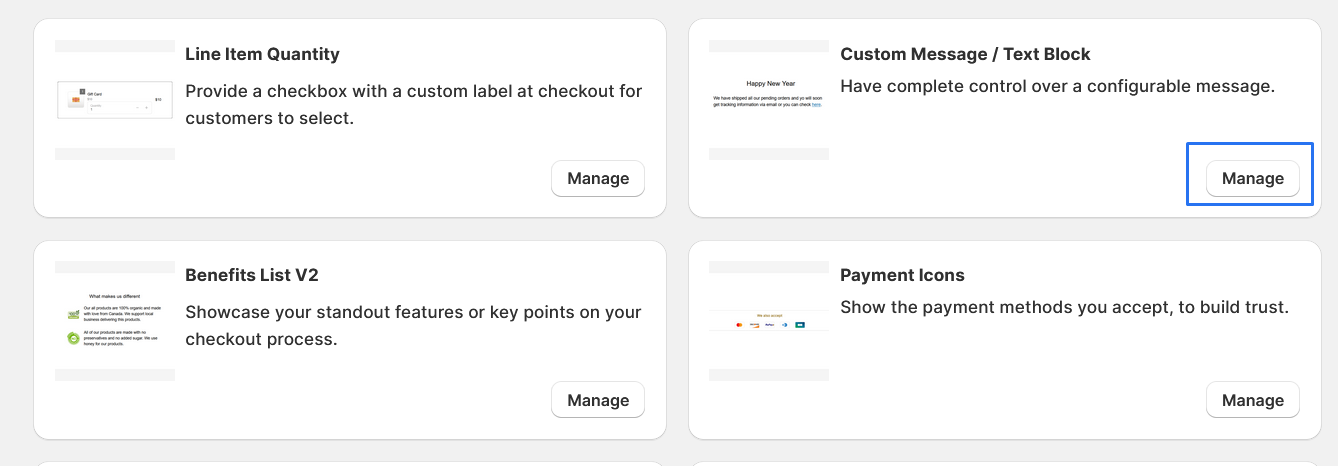
2. Click on "Manage" button to add Custom Message Block / Text Block widget
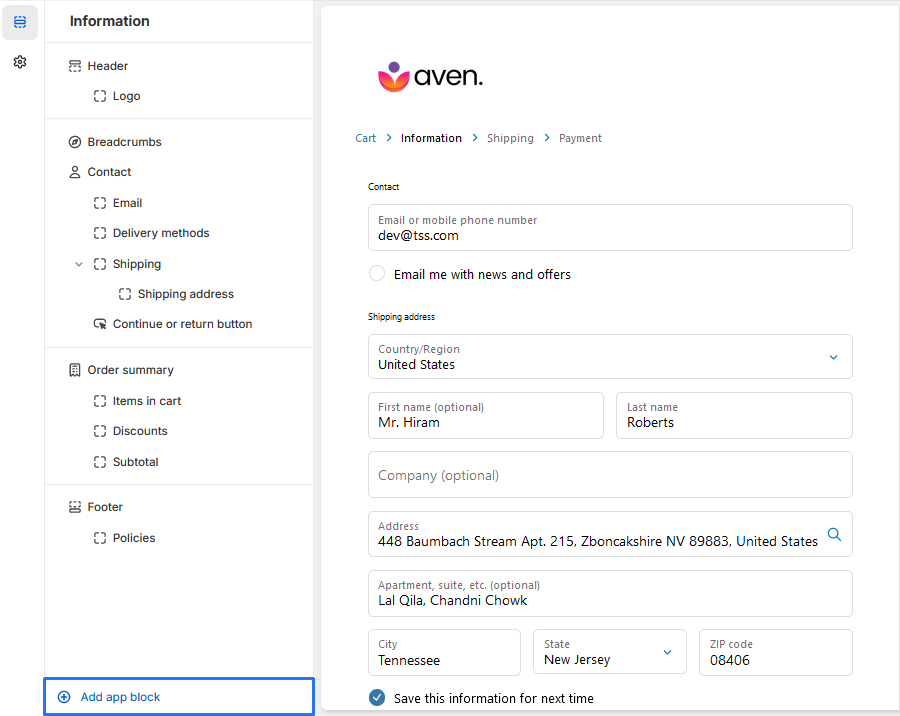
3. To Add Custom Message Block / Text Block, simply click on the "Add App Block" button to add the Custom Message Block / Text Block.
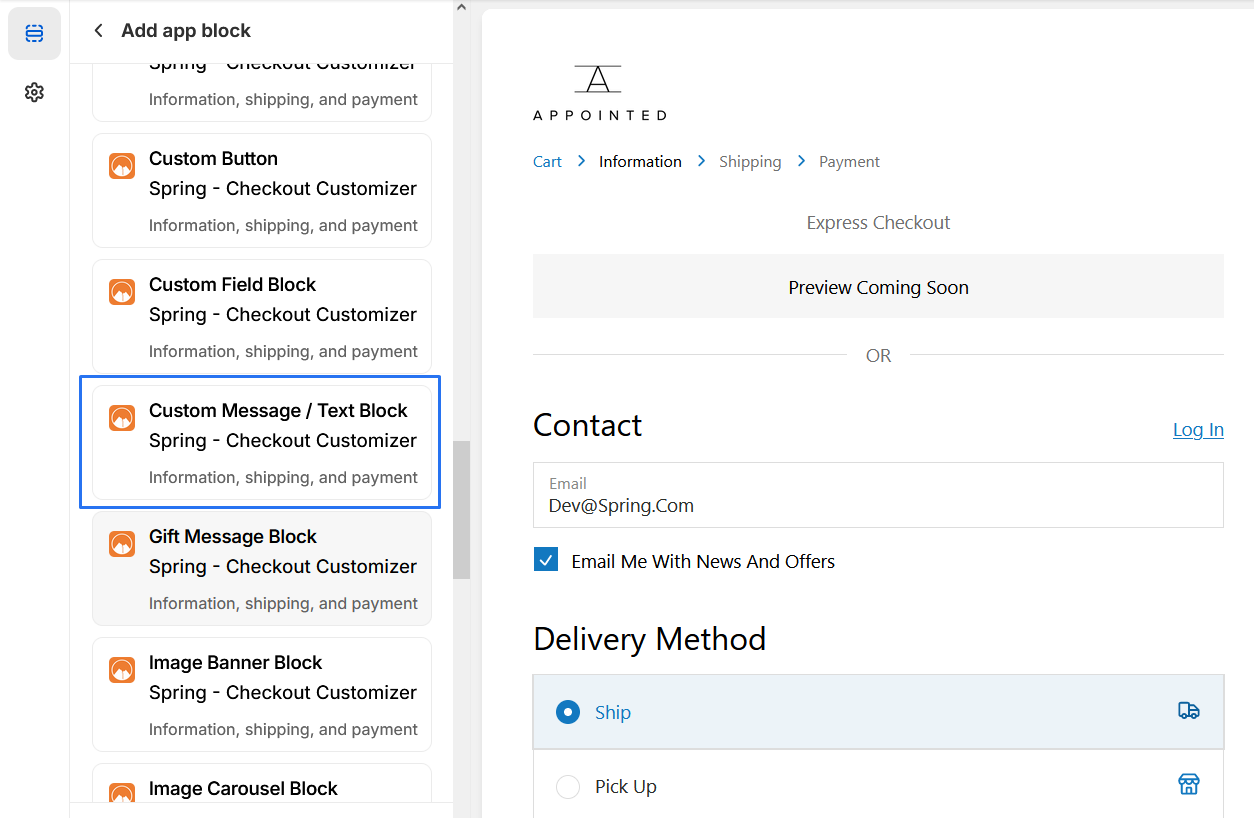
4. Choose "Custom Message Block / Text Block" from the list of available app blocks extensions.
5. Custom Message Block / Text Block
-
1. Heading : allows users to enter a heading text
-
2. Heading Alignment: offers options for aligning the heading, including: Center , End , Start.
-
3. Heading Size: provides options for setting the size of the heading, including: Extra Large, Extra Small , Large , Small .
-
4. Heading Seperator: Allows users to add an underline separator.
-
5. Text blocks: We allow 3 blocks for writing text.
-
6. Text Alignment: Options for aligning the Text, including: Center , End , Start.
* We provide bellow settings
Should be able to "preview" the extension to ensure it appears as desired